

English
Symbolic S7 (S7-1200 / S7-1500)
Pulse reads newer SIMATIC controllers by tag name — "DB_Line".ThroughputPerMinute — instead of by absolute address. It is the same Siemens S7 family as the classic mode, reached over a different protocol: S7CommPlus, the one TIA Portal itself speaks to a CPU.
Why it is worth the switch:
- Names instead of offsets. A classic data point is a byte offset into a data block, and it silently means something else the moment somebody re-compiles the program and the layout moves. A symbol survives that, because it is the name the program itself uses.
- Nothing to switch on. The classic mode needs PUT/GET communication enabled on the CPU — a setting many plants deliberately leave off. S7CommPlus is the interface TIA Portal already uses.
- Browsable. Pulse can ask the CPU what it has. You pick values out of a tree instead of transcribing a symbol table.
Which mode do I need?
Both modes are listed together under Data sources → S7 in the sidebar — each row in the list carries a badge showing its mode. To add a new source, click New data source, then choose Siemens S7: the dialog names each mode and its requirements. If in doubt: try symbolic first, and fall back to classic if your CPU is older than the range below.
What the CPU has to be
| Requirement | S7-1500 | S7-1200 |
|---|---|---|
| Firmware | V2.9 or later | V4.5 or later |
| Project | Loaded with TIA Portal V17 or later | Loaded with TIA Portal V17 or later |
| Protection level | Read access permitted, or a read role to log in with | Read access permitted, or a read role to log in with |
The firmware and the TIA version are two separate conditions and both have to hold: the firmware brings the TLS-mode protocol, and the project has to have been loaded by a TIA version that uses it.
An older CPU is not stuck. An S7-1500 below V2.9, an S7-1200 below V4.5, and every S7-300 and S7-400 can be read as a classic S7 source with PUT/GET enabled — or through the CPU's own OPC UA server, which S7-1500s from V2.0 and S7-1200s from V4.4 carry (it needs a runtime licence on the CPU). The device discovery scan tells you which of the three applies to each controller it finds.
Protection level and legitimation
A CPU's protection level decides whether an unauthenticated client may read it. If the level permits read access, Pulse needs nothing further. If it does not, the CPU expects a client to legitimate itself — with the protection-level password, or with a UMAC user that holds a read role.
If a CPU refuses the read, the source reports Read refused on its detail page. That is the protection level talking, not a network problem: give Pulse read access in the CPU's protection settings, or configure a read role for it.
Adding a symbolic S7 data source
- Data sources → New data source → Siemens S7, then choose Symbolic.
- Fill in the connection:
| Field | Description | Typical value |
|---|---|---|
| Name | What this CPU is called in Pulse | Line 1 CPU |
| Address | The CPU's IP address or hostname, optionally host:port | 192.168.1.50 |
| Read interval (seconds) | How often every data point of this source is read | 5 |
| Acquire from this data source | Switch off to stop reading without deleting the source | |
| Tags | Categorise the source; every data point inherits its tags | |
| Alert me when this source is unreachable | Creates a condition monitor named after the source |
No rack and no slot. The classic mode asks for them because a classic connection addresses one module of a rack. S7CommPlus addresses the CPU itself, so there is nothing to configure — if you are used to typing 0 and 1, their absence here is correct.
Five seconds is the default read interval, and a sensible one: a symbolic read is a batched request on an open session, so a five-second cycle costs the CPU very little. Lengthen it for values that change slowly.
Trusting the CPU's certificate
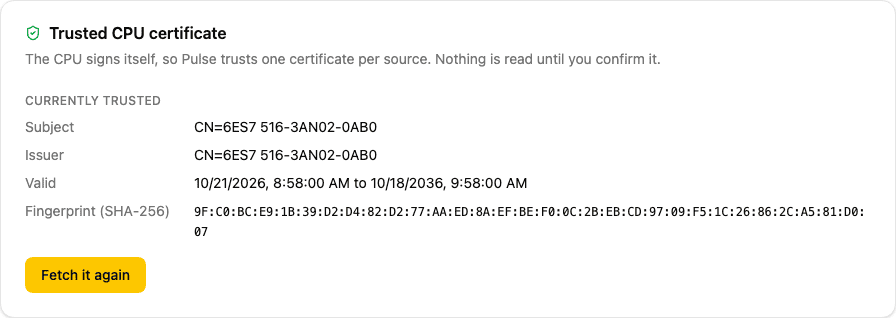
S7CommPlus is TLS, and a SIMATIC CPU signs its own certificate — there is no authority to check it against. So Pulse does what TIA Portal does: it shows you what the CPU presented and asks you to confirm it once. Nothing is read from the CPU until you do.
- Open the new source's page. The Trusted CPU certificate panel shows the current state — a colour-coded header tells you at a glance whether the certificate is trusted, pending confirmation, or mismatched.
- Click Fetch the CPU's certificate. Pulse opens a TLS connection, reads the certificate the CPU presents, closes again, and shows you its subject, its validity and its SHA-256 fingerprint.
- Compare that fingerprint with the one TIA Portal shows for the same CPU (under the CPU's protection settings), or with the one your controls engineer gives you.
- Click Trust this certificate. From that moment the source reads.
When a certificate is already trusted, the panel header shows the short fingerprint and a Show details toggle to expand the full certificate facts.
Compare the fingerprint before you confirm
Confirming is the whole of the security here. A fingerprint you did not check is a connection you have not authenticated — the certificate could belong to any machine that answered at that address.
If the CPU presents a different certificate later, Pulse stops reading. The panel header shows the mismatch state. Click Fetch it again, compare the new fingerprint, and confirm it to resume. A CPU's certificate changes when it is replaced, reset to factory settings, or re-issued — each of those is worth a human look.
Declaring data points
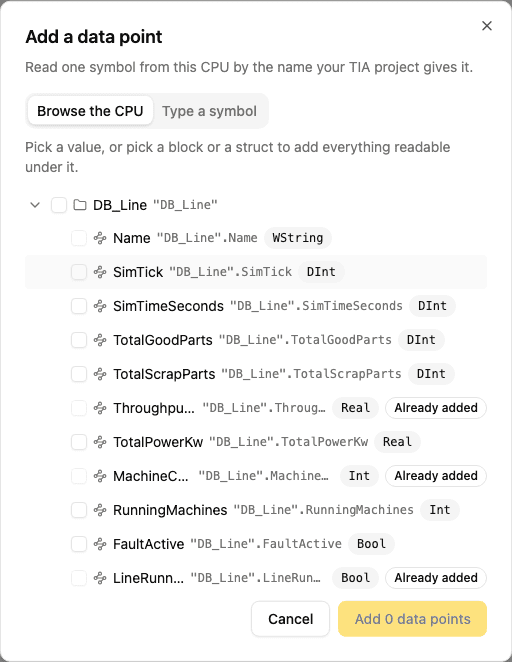
Open the source and choose Add data point. The dialog has two tabs.
Browse the CPU is the one to use. Pulse asks the CPU for its program and organises the symbols into folders: Data blocks, Inputs, Outputs, Memory, Timers, and Counters. The number next to a folder, a block, or a struct is how many data points it will add — see what you are ticking before you tick it. Tick what you want and click Add.
- Tick a value to read that one symbol.
- Tick a block, a struct or an array to read everything readable under it, without opening it. One tick on a struct of eleven members declares eleven data points.
- Large arrays show their first ten elements; click Show X more to expand the rest, or search for the element you need.
- Selecting more than 50 data points at once shows a confirmation step before the add runs, so a wide tick on a large struct is a deliberate choice.
- A selection of more than 1,000 data points is refused — open it and pick a smaller part.
- Symbols Pulse cannot store yet — dates, durations — are shown but cannot be ticked, so you can see that the CPU has them.
- A symbol this source already reads is marked Already added.
- Click a symbol's label to copy its full path to the clipboard.
- If some picks are no longer in the CPU's program when you click Add — because the program was recompiled between the browse and the add — Pulse names them, removes them from the selection, and adds nothing. Review the remaining selection and click Add again.
Search: Type at least two characters in the search box to search across the CPU's full symbol catalog without navigating the tree. Each result shows its parent path on a second line so you can see where it lives. Data blocks show their number (for example, DB4) so you can match them against TIA Portal's block list at a glance. Clear the search to return to the tree as you left it.
Type a symbol is the fallback, for a CPU that is not reachable yet or whose certificate nobody has confirmed. Type the symbol exactly as TIA Portal spells it, quotes included, and say which kind of value it holds:
| Reads as | Siemens types |
|---|---|
| Decimal number | Real, LReal |
| Whole number | Int, DInt, SInt, LInt, UInt, UDInt, USInt, ULInt, Byte, Word, DWord, LWord |
| On or off | Bool |
| Text | String, WString, Char, WChar |
Symbol syntax
A symbol is the path TIA prints, and Pulse sends it to the CPU unchanged — quotes, capitals and all.
| Symbol | What it is |
|---|---|
"DB_Line".ThroughputPerMinute | A value in a data block |
"DB_Motor".Limits.MaxRpm | A member of a struct |
"DB_Stations".Station[0].TemperatureC | A member of one element of an array |
The last of those is the shape no classic S7 address can express without counting bytes.
Importing a symbol table
To declare many at once, use Import from the data points' action menu (⋯). A symbolic import reads two columns:
- symbol — the name, as above.
- Reads as — which kind of value it holds. Leave it blank to ask the CPU: Pulse then looks the symbol up in the catalog, types it from the CPU's own declaration, and — if the row names a block or a struct — declares one point per readable symbol under it.
A row that states its type needs no CPU at all, so a symbol table can be imported before the controller is reachable. A row that leaves it blank is also the only kind that can report a symbol the CPU does not have: unknown symbols fail their own row, and the rest of the file still imports. See Importing from CSV for the wizard itself.
Alerting on a tag
A symbolic data point behaves like any other: build a condition over it and attach a condition monitor. In the condition editor's sensor picker, the source is listed under Siemens S7 (symbolic) and its points are listed by symbol.
One session per CPU
Pulse holds a single S7CommPlus session per CPU and batches every data point of the source into one request per cycle. That is deliberate: an S7-1200 has very few connection resources, and an engineering station, an HMI and a monitoring system can exhaust them between them. If TIA Portal cannot go online while Pulse is reading, the CPU is out of connections — not blocked by Pulse holding more than its one.
The same reasoning is why one source per CPU is the right shape. Two sources pointed at the same controller means two sessions.
When a source stops reading
The source's detail page shows the reason in a banner, and the Unreachable monitor's incident carries the same text. The ones specific to this mode:
| Reason | What it means |
|---|---|
| Certificate rejected (no pin) | Pulse has not confirmed any certificate for this CPU yet. Open the certificate panel, fetch the certificate, and confirm it. |
| Certificate rejected (mismatch) | The CPU is presenting a different certificate from the one Pulse trusts. Open the certificate panel, fetch the new certificate, compare it, and confirm it. |
| Security handshake failed | The TLS handshake did not complete. Usually a CPU whose firmware predates the protocol — read it as a classic source instead. |
| Authentication failed | The CPU's protection level asks the client to legitimate itself, and Pulse could not. Configure read access or a read role. |
| Read refused | The session is up and the CPU refused the read — its protection level does not permit it. |
| Firmware unsupported | The firmware is outside the range this protocol supports. Use the classic mode, or the CPU's own OPC UA server. |
| Collector cannot read this protocol | The collector assigned to this source is an older version that does not support the symbolic S7 protocol. Update the collector, or assign the source to a collector that can. |
The full list is in Monitors.