

English
OPC UA Security
Every OPC UA data source decides how its connection to the server is secured. This page explains the pieces of that decision: the security mode and security policy that protect messages in transit, the two certificates involved — Pulse's own identity and the server's — and how the session is authenticated.
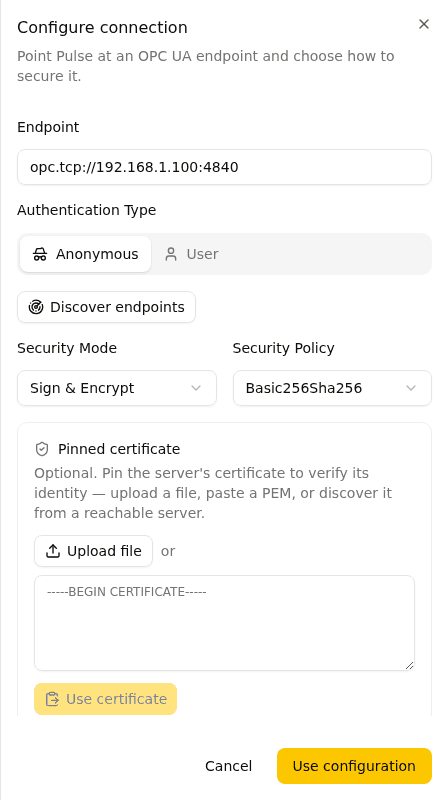
How a secure connection works
An OPC UA connection is secured in two layers:
- Secure channel — the transport layer. Pulse and the server exchange X.509 certificates and, depending on the security mode, sign and/or encrypt every message. Pulse presents its application instance certificate; the server presents its own certificate, which Pulse can pin.
- Session — inside the channel, Pulse authenticates as a user: anonymously or with a username and password. See Authentication.
Two practical consequences follow:
- For Sign or Sign & Encrypt, the server must trust Pulse's certificate before any connection succeeds.
- Encryption alone does not verify who you are talking to. Only pinning the server's certificate does.
Security mode
The security mode sets what the secure channel does with each message:
| Mode | Effect | Use when |
|---|---|---|
| None | Messages are sent in plain text; no certificates are exchanged. | Only in isolated networks where the path is trusted. |
| Sign | Messages are signed — tampering is detected, but content is readable. | Integrity matters, confidentiality does not. |
| Sign & Encrypt | Messages are signed and encrypted. | Recommended for production. |
Mode and policy are coupled: selecting mode None forces the policy to None (and vice versa), and switching to a secure mode preselects Basic256Sha256.
Security policy
The security policy is the algorithm suite used for signing and encryption:
| Policy | Status | Notes |
|---|---|---|
| None | — | No cryptography. Only valid with security mode None. |
| Basic128Rsa15 | Deprecated | Legacy SHA-1-based suite. Only for old servers that offer nothing else. |
| Basic256 | Deprecated | Legacy SHA-1-based suite. Only for old servers that offer nothing else. |
| Basic256Sha256 | Current standard | Recommended default — widely supported. |
| Aes128Sha256RsaOaep | Current | Modern alternative to Basic256Sha256. |
| Aes256Sha256RsaPss | Current | Strongest suite — use it if the server offers it. |
TIP
Pick the strongest policy your server supports. Discovery does this for you: it lists only combinations the server actually offers and preselects the strongest one.
Finding the right configuration with discovery
Instead of guessing what the server supports, let Pulse ask it. With an opc.tcp:// endpoint URL filled in, click Discover endpoints in the connection panel. Pulse queries the server and shows:
- Security configuration — the real mode + policy combinations the server offers, strongest first. The strongest is marked Recommended; combinations without signing or encryption carry a warning.
- Server certificate — subject, issuer, validity dates, and thumbprint of the certificate the server presented, with badges for expired or soon-expiring certificates. For a secure configuration, this certificate is offered as the pin.
If the server is unreachable, you can still choose the security mode and policy manually — discovery is a convenience, not a requirement.
The two certificates
Secure OPC UA connections involve one certificate per side, and each side must decide to trust the other:
| Certificate | Who presents it | Who must trust it |
|---|---|---|
| Application instance certificate | Pulse | Your OPC UA servers — otherwise they reject the connection. |
| Server certificate | The server | Pulse — verified only if you pin it to the data source. |
Application instance certificate
To open a secure channel (Sign or Sign & Encrypt), Pulse presents an application instance certificate — a self-signed X.509 identity, one per organization, shared by every OPC UA data source. Each OPC UA server must trust this certificate before it will accept a secure connection.
You manage the certificate under Organization → Settings → OPC UA Certificate. Pulse provisions it automatically the first time a secure connection needs it, or you can click Generate certificate ahead of time so you can trust it on your servers before adding data sources.
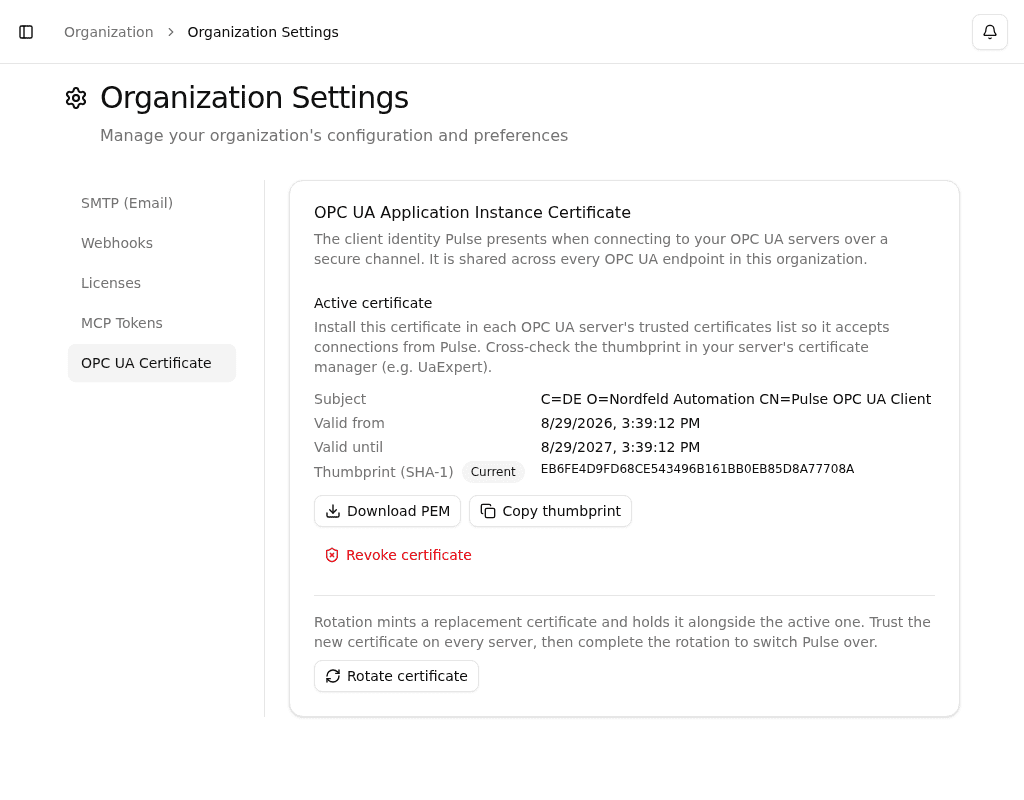
| Property | Value |
|---|---|
| Subject | Pulse OPC UA Client (self-signed) |
| Key | RSA 2048-bit, SHA-256 signature |
| Validity | One year; rotation replacements ~14 months, so a full year remains after the switch |
| Thumbprint | SHA-1 of the certificate, uppercase hex |
From the settings page you can Download PEM and Copy thumbprint to cross-check against what your server shows in its trust list.
Trusting the certificate on your servers
The exact steps depend on your OPC UA server, but the pattern is always the same:
- Download the certificate from Organization → Settings → OPC UA Certificate.
- Import it into the server's trusted certificates store (in UaExpert and many servers this is the "Trusted" or "PKI" folder).
- Confirm the thumbprint the server shows matches the one in Pulse.
Until the certificate is trusted, secure-channel handshakes to that server fail.
Rotation — replacing an expiring certificate
Because a replacement certificate is a new identity, every server that trusted the old one must trust the new one — so Pulse rotates with an overlap window rather than a hard swap:
- A replacement is prepared ahead of time. About 60 days before expiry (or immediately, if you click Rotate certificate), Pulse mints a pending certificate and keeps serving the current one. The settings page then shows both, Pulse raises an incident, and your organization's admins receive an email.
- You trust the new certificate everywhere. Copy the pending certificate's thumbprint and add it to the trusted store on every OPC UA server — exactly as you did for the current one. Monitoring keeps running on the old certificate throughout.
- You complete the rotation. Once every server trusts the new certificate, click Complete rotation. Pulse promotes the pending certificate to active and removes the old one. New secure channels use the new identity immediately.
WARNING
Only complete the rotation after every server trusts the new certificate. Completing it early breaks secure connections to any server that has not yet trusted it.
Started a rotation you don't want? Discard replacement deletes the pending certificate and leaves the active one untouched.
If a certificate expires before you complete the rotation, Pulse promotes the waiting replacement automatically — the old certificate is already unusable at that point, so this can only restore monitoring, never break it. You still need to have trusted the new certificate on your servers for connections to recover.
If the certificate is compromised
Revoke certificate immediately discards the active certificate and generates a new identity. Every OPC UA server will reject Pulse until you trust the new certificate on it, so secure monitoring stays down in the meantime. Use it only for a compromised key — for a planned replacement, rotation avoids the outage.
Server certificate pinning
Pinning is how Pulse verifies the server's identity — the other half of the trust relationship.
Without a pin, Pulse accepts whatever certificate the server presents. The channel is still encrypted under Sign & Encrypt, which protects against eavesdropping — but not against impersonation: anything that answers on that address could terminate the connection. With a pin, future connections must present exactly the pinned certificate, or the connection fails.
Pinning is optional and available whenever the security mode is Sign or Sign & Encrypt. There are three ways to pin:
- Discovery — run discovery and the server's current certificate is offered as the pin. Recommended when the server is reachable.
- Upload file — upload a PEM or DER certificate file.
- Paste PEM — paste the certificate text and click Use certificate.
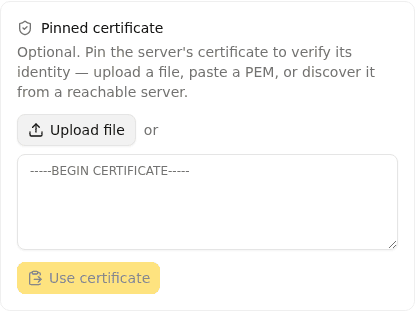
Once pinned, the section shows the certificate's thumbprint and validity. Replace supplies a different certificate; Unpin removes it (after a confirmation, since it removes the man-in-the-middle protection).
When the server's certificate changes
If you run discovery on a data source that already has a pin, Pulse compares the two and tells you whether the pinned certificate matches or differs from what the server currently presents. A difference can mean a legitimate certificate rotation on the server — or a man-in-the-middle. Adopting the new certificate is therefore always an explicit action: verify the change is expected, then click Use discovered certificate.
WARNING
If you change the endpoint URL while a certificate is pinned, the pin belongs to the previous server and is removed when you save — a warning in the form makes sure this is never silent. The same applies when switching the security mode to None. Re-pin after the change.
Pinning and stored credentials
If a data source uses username/password authentication on a signed or encrypted channel without a pinned certificate, the form shows a warning: the server's identity is unverified, so a man-in-the-middle could intercept the credentials. Pinning the server certificate closes this gap — treat the warning as a prompt to pin, not as noise.
Authentication
Independent of the transport security, the server may require Pulse to authenticate as a user:
- Anonymous — no credentials; the server must allow anonymous sessions.
- User — username and password. Credentials are stored in Pulse as named, organization-wide entries and selected per data source; organization admins can create new ones directly from the connection panel.
TIP
When using username/password authentication, run the connection with Sign & Encrypt and a pinned server certificate so credentials can neither be read in transit nor handed to an impostor.
Network requirements
Pulse connects over the binary opc.tcp:// protocol — the endpoint URL must use this scheme. Ensure your firewall allows TCP from the Pulse server to the OPC UA server's port (conventionally 4840, but servers can listen anywhere — use the port from your endpoint URL).
Troubleshooting
| Symptom | Likely cause | Fix |
|---|---|---|
| Secure connection fails right after enabling Sign / Sign & Encrypt | The server does not trust Pulse's certificate yet | Trust the application instance certificate on the server |
| Connection fails after maintenance on a source with a pinned certificate | The server's certificate was rotated | Open the connection panel, run discovery, verify the new certificate, then adopt it |
| Secure connections fail after completing a certificate rotation | A server was missed when trusting the new certificate | Trust the new thumbprint on that server |
| Authentication errors | Wrong username/password, or the server account lacks rights | Check the stored credentials and the account's permissions on the server |
| The chosen security configuration is rejected | The server no longer offers that mode + policy combination | Run discovery again and pick a configuration the server offers |
| Server unreachable | Network path or firewall | Verify the endpoint URL, port, and firewall rules |
Related
- OPC UA Configuration — adding an OPC UA data source
- Monitors — monitor concepts shared by all types