

English
Preferences
The preferences page allows you to customize your personal Pulse settings.
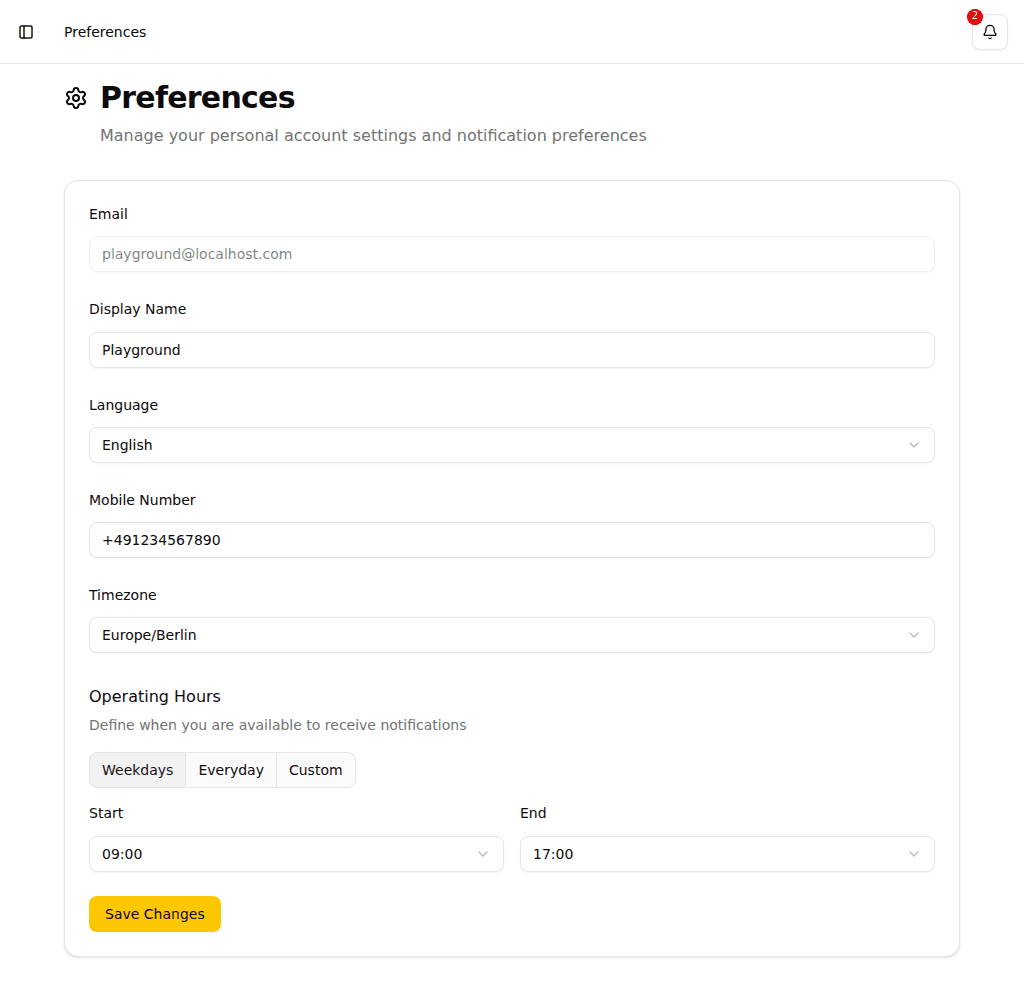
Available Settings
| Setting | Description |
|---|---|
| Display Name | Your name as shown to other team members |
| Your email address (read-only) | |
| Language | Interface language: English or German |
| Mobile Number | Phone number for SMS and voice call notifications |
| Timezone | Your local timezone for displaying dates and times |
| Operating Hours | When you are available to receive notifications |
WARNING
If any severity in your organization uses SMS or voice call notifications, a warning banner is shown until you add a mobile number. Without a mobile number, those notification channels cannot reach you.
Mobile App Pairing
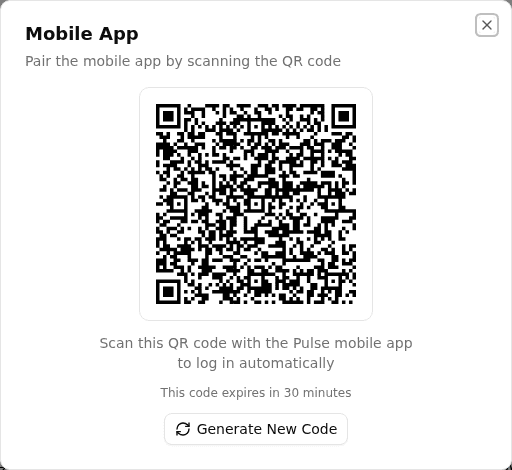
You can pair the Pulse Dispatch mobile app to your account without manually entering credentials. This is available from the user menu in the sidebar on desktop.
To pair the mobile app:
- Open the user menu at the bottom of the sidebar.
- Select Pair Mobile App.
- Scan the displayed QR code with the Pulse Dispatch app.
The QR code expires after 30 minutes. If it expires before you scan it, click Generate New Code to get a fresh one.
TIP
Don't have the app yet? Pulse Dispatch is available on the App Store for iPhone and iPad. See Mobile App for platform availability and setup instructions.
Certificate fingerprint
When pairing, the dialog shows a Certificate fingerprint — a short sequence of characters derived from the appliance's TLS certificate. Your phone will display the same fingerprint during pairing. Verify that both match before confirming the connection. If they differ, do not proceed.
Operating Hours
Operating hours define when you can be contacted for incident notifications. Outside of operating hours, notifications will be deferred or routed to other team members.
Modes
- Weekdays -- Monday through Friday with the same hours each day
- Every day -- Same hours every day including weekends
- Custom -- Different hours for each day of the week
Invert operating hours
Enable Invert operating hours to flip the window: notifications arrive outside the selected hours instead of during them. This is useful if you want to be available nights and weekends but not during regular business hours.
Default Configuration
The default operating hours are Monday through Friday, 09:00 to 17:00 in your configured timezone.
TIP
Configure your operating hours to match your actual working schedule. This ensures you only receive notifications when you can respond to them.