

English
Heartbeat Monitors
A heartbeat monitor watches a job that runs on a schedule -- a nightly backup, an hourly export, an edge device that reports in. The job calls a URL every time it finishes successfully, and Pulse raises an incident when that call stops arriving.
This is the one monitor type that works the other way round: Pulse does not reach out to anything. It waits, and silence is the alarm. That makes it the right choice for anything Pulse cannot reach directly -- a cron job on a machine behind a firewall, a script on a laptop, a gateway on a remote site.
A heartbeat is a data source: Pulse acquires one signal from it -- "a ping arrived" -- and an ordinary monitor alerts when that signal goes quiet. You will find your heartbeats under Data sources, and the monitor that pages about each one in the monitor list beside everything else.
Creating a Heartbeat
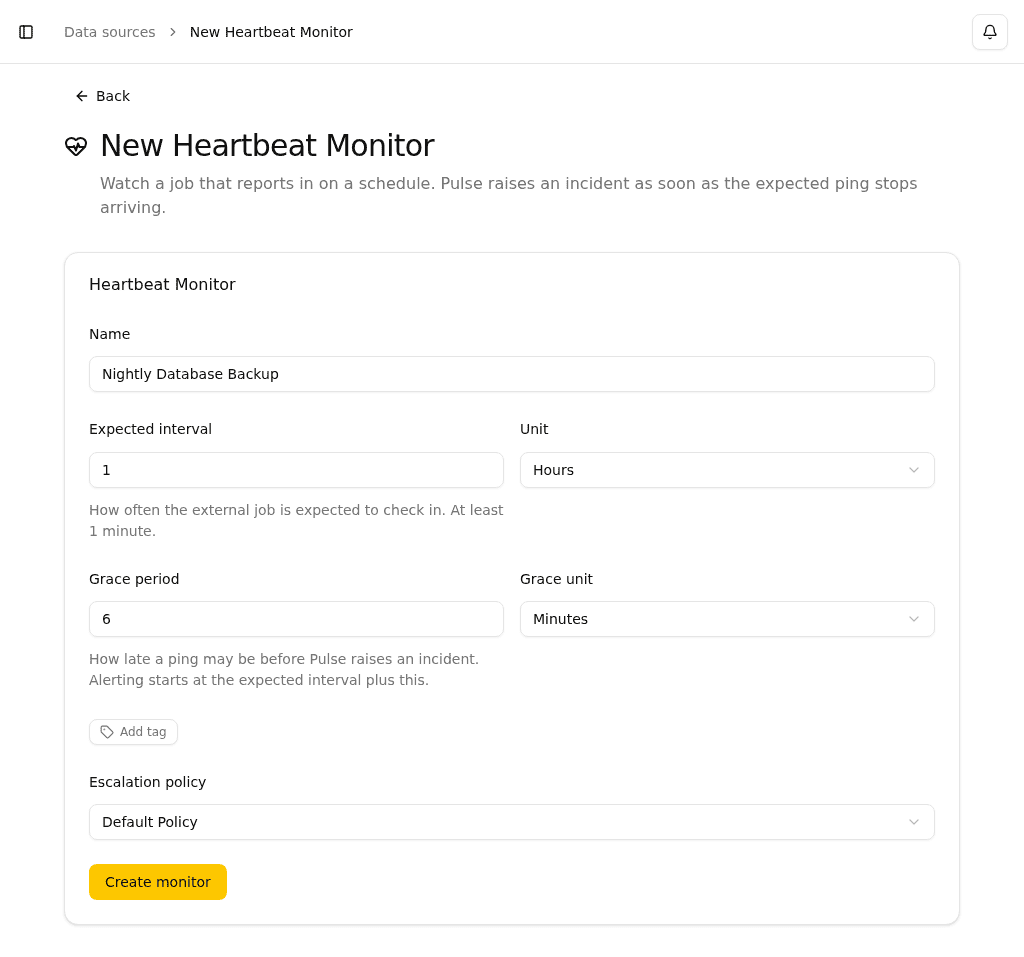
- Navigate to Data sources and click New, or use Create on the monitor list
- Select Heartbeat
- Fill in the fields:
| Field | Description |
|---|---|
| Name | A descriptive name, usually the job's name (e.g. Nightly Backup Job) |
| Expected interval | How often the external job is expected to check in. Minimum: 1 minute |
| Unit | Minutes, Hours, or Days |
| Grace period | How late a ping may be before Pulse raises an incident. Alerting starts at the expected interval plus this |
| Grace unit | Seconds, Minutes, or Hours |
| Escalation policy | Which escalation policy to use when the ping stops |
| Tags | Categorize the heartbeat |
Creating a heartbeat creates its monitor at the same time, named after it. That monitor is an ordinary one: you can mute it, hand it to a team, change its escalation policy, or open it and add a condition of your own alongside the ping check.
The expected interval is the schedule your job runs on. Set it to match how often the job actually runs — not longer.
The grace period covers the jitter in when a job finishes. A backup that runs every hour but occasionally takes a few extra minutes should have a grace period of those few minutes, so a slow run does not page anyone. Pulse raises an incident only after both the expected interval and the grace period have elapsed without a ping. A grace period of zero means Pulse alerts the instant the expected interval passes.
The clock starts the moment you create the monitor, not at the first ping. If no ping ever arrives, the monitor raises its first incident after the expected interval plus the grace period have elapsed. Until either the first ping or that first deadline, the monitor's status is Unknown.
The Ping URL
Each heartbeat gets its own ping URL, shown on the heartbeat's page under Data sources.
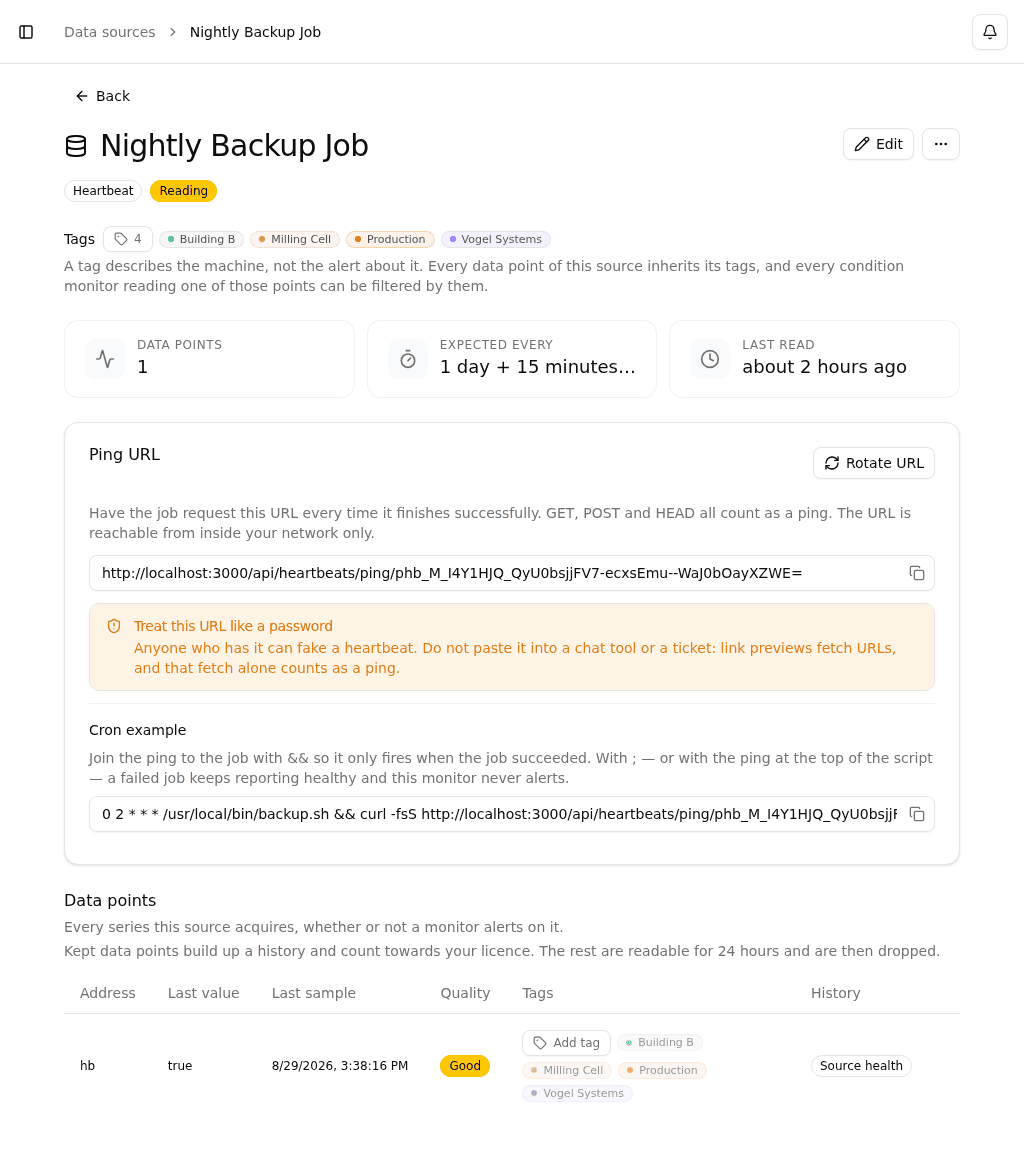
Click the copy button next to the URL to put it on your clipboard. Any of GET, POST, or HEAD counts as a ping, so whatever your job already has available -- curl, wget, a scheduled task, a two-line script -- will work.
The URL is reachable from inside your network only. A job running on a machine that cannot reach Pulse cannot ping it.
Treat the ping URL like a password
Anyone who has the URL can fake a heartbeat, and a faked heartbeat means a failed job that reports healthy.
Do not paste it into a chat message, a ticket, a wiki page, or a shared document. Chat tools and ticket systems generate link previews by fetching the URL -- that fetch alone counts as a ping, so pasting the URL somewhere convenient can silently keep the monitor green for as long as the preview cache refreshes.
Put the URL where secrets already live: your configuration management, a secrets manager, or directly in the job's own script on the machine that runs it.
Rotating the Ping URL
If the URL leaked, click Rotate URL on the heartbeat's page under Data sources. The old URL stops working immediately, so install the new one right away -- a job still calling the old URL no longer counts as a ping, and the monitor raises an incident once the expected interval has passed.
Rotating only replaces the URL. The monitor's history, its expected interval, and any open incident are left alone.
Wiring It Into Cron
Put the ping after the job and join the two with &&:
0 2 * * * /usr/local/bin/backup.sh && curl -fsS https://pulse.example.com/api/heartbeats/ping/your-token&& means "only if the previous command succeeded". If the backup fails, the ping never runs, Pulse hears nothing, and you get the incident you wanted.
Three ways to get this wrong, all of which leave a monitor that reports healthy forever while the job is broken:
- Joining with
;instead of&&. A semicolon runs the ping whether the job succeeded or not. - Putting the ping first.
curl ... && /usr/local/bin/backup.shpings before the job has done anything at all. - Putting the ping at the top of the script. Same problem, one file further away and much harder to notice in review.
The rule is simple: the ping is the job's success signal, so nothing may ping unless the job has finished and succeeded.
The -fsS flags on curl keep it quiet on success and make it fail on an HTTP error, so a network or server problem shows up in your cron mail instead of disappearing.
Note that a mistyped or rotated-out ping URL will not show up there: the ping endpoint always answers 200 OK, whether or not the token is valid, so that nobody can use it to test whether a token they found is live. A wrong URL surfaces the same way a job that stopped running does -- the monitor stops hearing from you and raises an incident once the expected interval passes. After you set up or rotate a URL, check the monitor's Last ping to confirm it arrived.
For a job that is a longer script rather than a single command, put the ping on the last line and make sure the script exits early on failure:
#!/bin/sh
set -e
run_the_backup
verify_the_backup
curl -fsS https://pulse.example.com/api/heartbeats/ping/your-token
With set -e, any failing step aborts the script before it reaches the ping.
When the Ping Stops
Once the expected interval plus the grace period elapses without a ping, the monitor turns Unhealthy and Pulse opens an incident named after the monitor. From there the incident follows its escalation policy like any other, so the right people get notified through the usual channels.
The next ping that arrives recovers the monitor and resolves the incident automatically.
Activity Feed
Pings are recorded in the monitor's activity feed, so you can answer "did the backup actually run every night this month?" without leaving Pulse. A run of consecutive pings is collapsed into a single entry -- click Show all N to expand it.
Pings that arrive less than 30 seconds apart are recorded once. A job that retries in quick succession therefore shows a single entry rather than one per attempt. This never affects the monitor's health: every ping resets the deadline, whether or not it adds a feed entry.
Because a heartbeat monitor can ping as often as once a minute, ping entries are kept for your organization's data retention window and then removed. Status changes -- the monitor going unhealthy and recovering -- are kept as the long-term record.
Notes
- Heartbeat monitors cannot be created through CSV import. Each one carries its own secret URL that has to be distributed to the job that pings it, so they are created one at a time.
- Heartbeat monitors can be included in scheduled reports by selecting Heartbeat in the report's monitor-type filter.
- See Monitors for filtering, muting, tagging, and everything else that applies to every monitor type.