

English
Licenses
Licenses activate Pulse features for your organization, define your plan's capacity limits, and control how long monitoring data is retained. Manage them under Organization > Settings > Licenses.
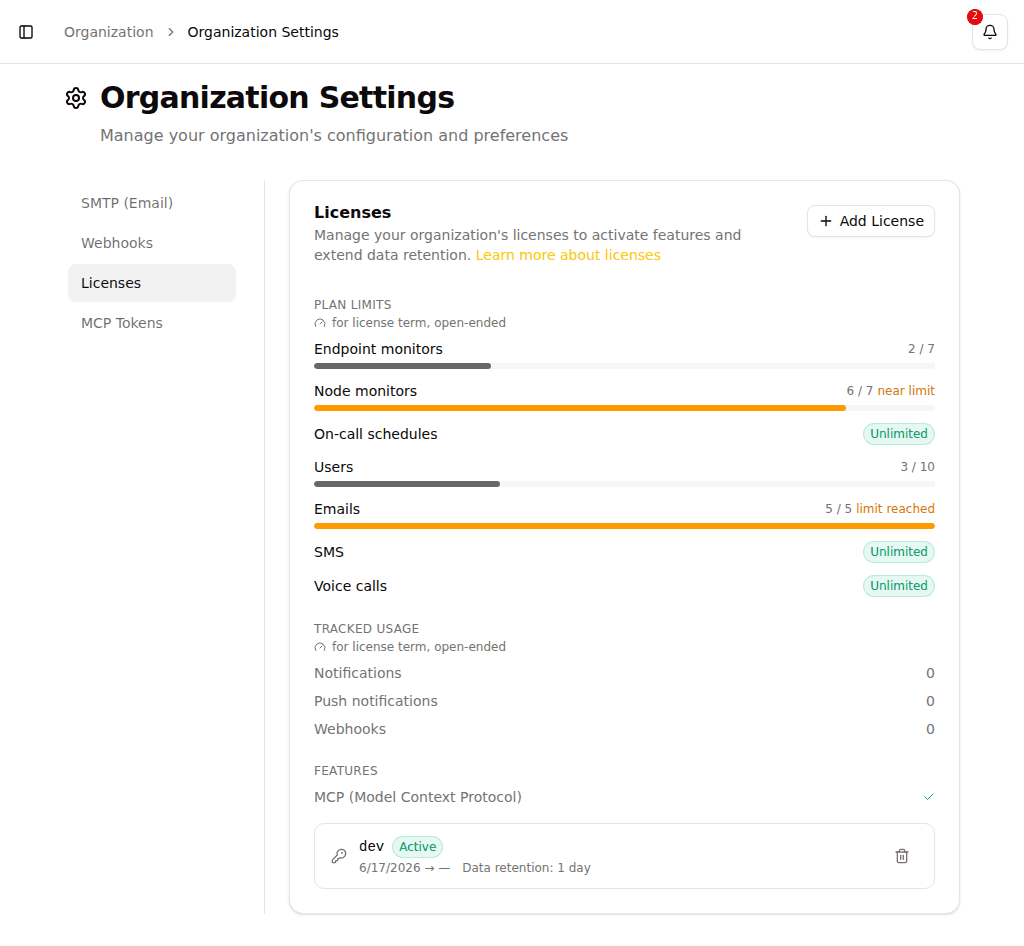
Adding a license
- Navigate to Organization > Settings > Licenses.
- Click Add License.
- Paste your key into the License Key field and click Add License.
Your license key is provided by Pulse and is a long token that begins with eyJ. If the key is rejected, Pulse shows one of these messages:
- The license key is invalid. -- The key is malformed or is not a license token.
- The license key could not be verified. -- The key's signature did not check out. Confirm you pasted the entire key.
License details
Each license in the list shows:
| Field | Description |
|---|---|
| Instance ID | The Pulse instance the license was issued for. |
| Status | Active (the license currently driving quotas), Standby (valid now but not the license in effect), Expired (past its end date), or Pending (its start date is in the future). |
| Valid range | Start → end date. A missing date means there is no limit in that direction (open-ended). |
| Data retention | How many days Pulse keeps your monitoring data before it is automatically deleted. |
To remove a license, click the trash icon and confirm.
WARNING
Deleting a license can cost your organization access to licensed features, and the application may no longer be fully usable. Only delete a license you intend to replace.
Usage and plan limits
The usage panel at the top of the Licenses tab compares your current usage against the active license. Each group is labelled with the license term -- for license term, ends {date}, or for license term, open-ended when the license has no end date.
Plan limits
These capacities are governed by your plan. Each is shown as a gauge of usage against your allowance:
| Limit | What it counts |
|---|---|
| Endpoint monitors | Data sources you have configured. |
| Node monitors | Data points you have chosen to keep a history for. |
| On-call schedules | On-call schedules in your organization. |
| Users | Active members in your organization. |
| Emails | Email notifications sent during the license term. |
| SMS | SMS notifications sent during the license term. |
A gauge appears in one of three forms:
- A bar with a count (for example
12 / 20) -- your usage against the allowance. The bar is neutral normally, turns amber with a near limit note at 80% or more, and red with a +N over note once you exceed the allowance. - Unlimited -- your plan sets no cap on this capacity.
- not in your plan -- this capacity is not part of your current plan. Any usage is shown in red as a signal that it falls outside your plan's limits.
Features
Depending on your plan, certain features can be enabled or disabled for your organization. The Features section of the usage panel lists each feature and whether it is active on the current license:
| Feature | Description |
|---|---|
| MCP (Model Context Protocol) | Exposes Pulse data to AI assistants through the Model Context Protocol. |
| CVE monitoring | Tracks known vulnerabilities for the firmware versions Pulse reads from your controllers. |
| AI Canvas | AI-assisted incident analysis workspace. |
| S7 device discovery | Scans a network range for Siemens S7 controllers. |
| OPC UA device discovery | Scans a network range for OPC UA servers. |
| PROFINET device discovery | Scans a network segment for PROFINET devices. |
| Asset register | Persistent inventory of every station your scans have found, kept from one scan to the next. See Asset Register. |
Each entry is shown as enabled or disabled based on the active license. Device discovery is licensed per protocol — your plan can include any combination of S7, OPC UA, and PROFINET.
Tracked usage
Pulse also reports message volume that is counted but not capped, over the same license term:
- Notifications
- Push notifications
- Webhooks
These figures are informational -- they do not block activity when they grow.
Low allowance notifications
When your email or SMS allowance drops to 10% or less of the licensed cap, Pulse automatically sends an in-app notification to every organization admin and owner:
- Email allowance running low -- You have used X of Y messages in the current license term. Top up to avoid interrupted delivery.
- SMS allowance running low -- You have used X of Y messages in the current license term. Top up to avoid interrupted delivery.
The notification is sent once per license. Installing a new license (for example after a top-up) re-arms the warning for the new term.
License status banner
When your organization's license needs attention, Pulse shows a banner at the top of every page:
- No valid license -- "This organization does not have a valid license. Some features may be limited."
- License expiring soon -- "Your license is about to expire. Please renew to avoid service disruption."
The banner clears automatically once a valid, non-expiring license is active.
Related
- Organization Settings -- SMTP servers and webhooks
- Members & Roles -- Who can administer the organization
- Monitors -- The monitors counted against your plan