

English
Members & Roles
Pulse uses a role-based access control system organized around organizations and teams. The Members page shows all users in your organization with their display names and roles.
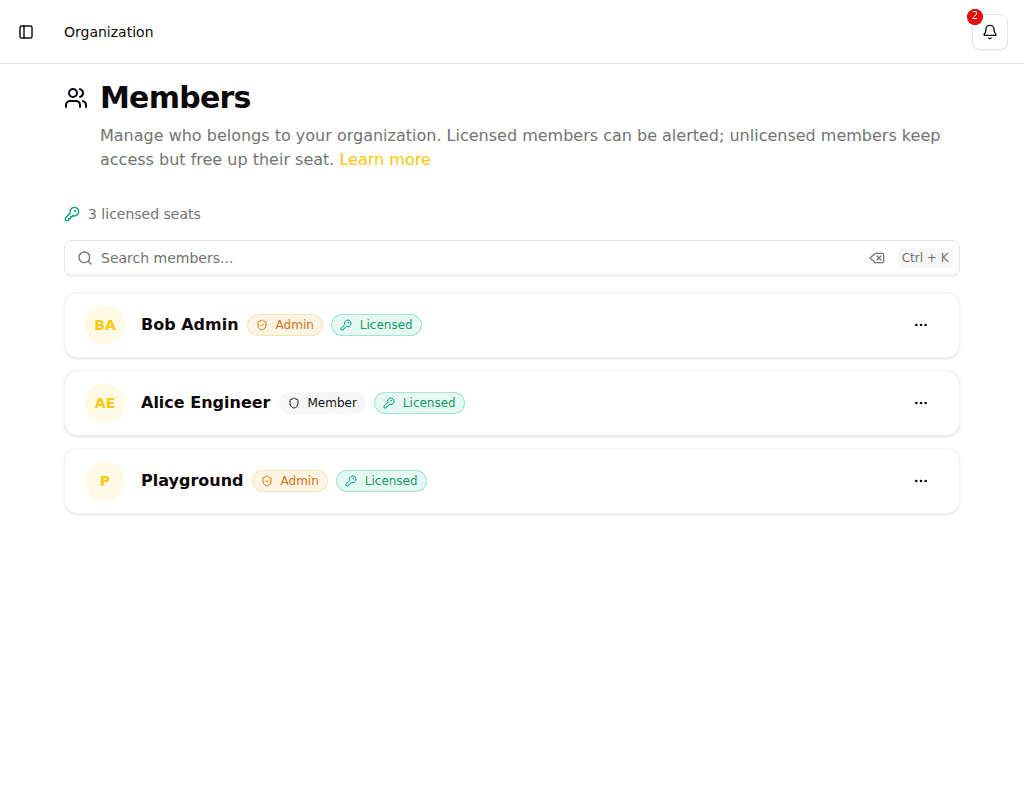
- Search -- Filter the member list by name
- Seat summary -- Shows how many licensed seats are in use and how many remain
- Role badges -- Each member displays an Admin or Member badge
- License badges -- Each member displays a Licensed or Unlicensed badge
Organization Roles
| Role | Capabilities |
|---|---|
| Admin | Create and manage monitors, tags, severities, escalation policies, and teams. Full configuration access. |
| Member | View monitors and incidents. Acknowledge and resolve incidents. View team information. |
Managing Member Roles
As an admin, click the action menu next to a member to:
- Promote to Admin -- Grant full configuration access
- Demote to Member -- Restrict to view-only access
- Remove Member -- Remove the user from the organization
WARNING
Removing a member cannot be undone. The user will lose access to all organization resources immediately.
Licensed seats
Every member is either licensed or unlicensed. A licensed member holds one of your organization's licensed seats; the number of seats is set by your license.
| State | What it means |
|---|---|
| Licensed | Holds a seat and can be alerted -- receives notifications and can be added as a recipient on escalation policies and on-call schedules. |
| Unlicensed | Keeps access to log in and view configuration, but frees up the seat and is never alerted. Cannot be added to escalation policies or schedules. |
The members page shows how many seats are used and how many remain. When all seats are taken, assigning a licence to an existing unlicensed member is blocked until you free a seat or raise the limit. Accepting an invitation still goes through — the new member joins unlicensed instead of being turned away, and you can license them once a seat becomes available.
Changing a member's license state
As an admin, use the action menu next to a member to Assign license or Remove license. Removing a license is refused while the member is named directly as a recipient on an escalation policy or on-call schedule -- remove those references first.
Team Roles
| Role | Capabilities |
|---|---|
| Team Admin | Manage team members and team settings |
| Team Member | Participate in the team and receive notifications |
Inviting Users
Team admins can invite new users to their team:
- Navigate to the team detail page
- Copy the invite link
- Share the link with the person you want to invite
- The invited user can register a new account or log in with an existing one
TIP
Users who receive an invite link will be asked to either log in or create a new account before joining the team.
Creating an Organization
When you first register, you will be prompted to create an organization. You need to provide:
- Organization Name -- A descriptive name for your organization
- Timezone -- The default timezone used for date/time displays
Switching Organizations
If you belong to multiple organizations, you can switch between them using the user menu in the sidebar.
- Click your name in the bottom-left corner of the sidebar
- Select Select Organization
- Choose the organization you want to work in
Related
- Teams -- Manage team membership
- Organization Settings -- SMTP servers and webhooks
- Licenses -- License keys, plan limits, and usage
- Preferences -- Personal notification settings