

English
Teams
Teams group users together for notification routing and access control.
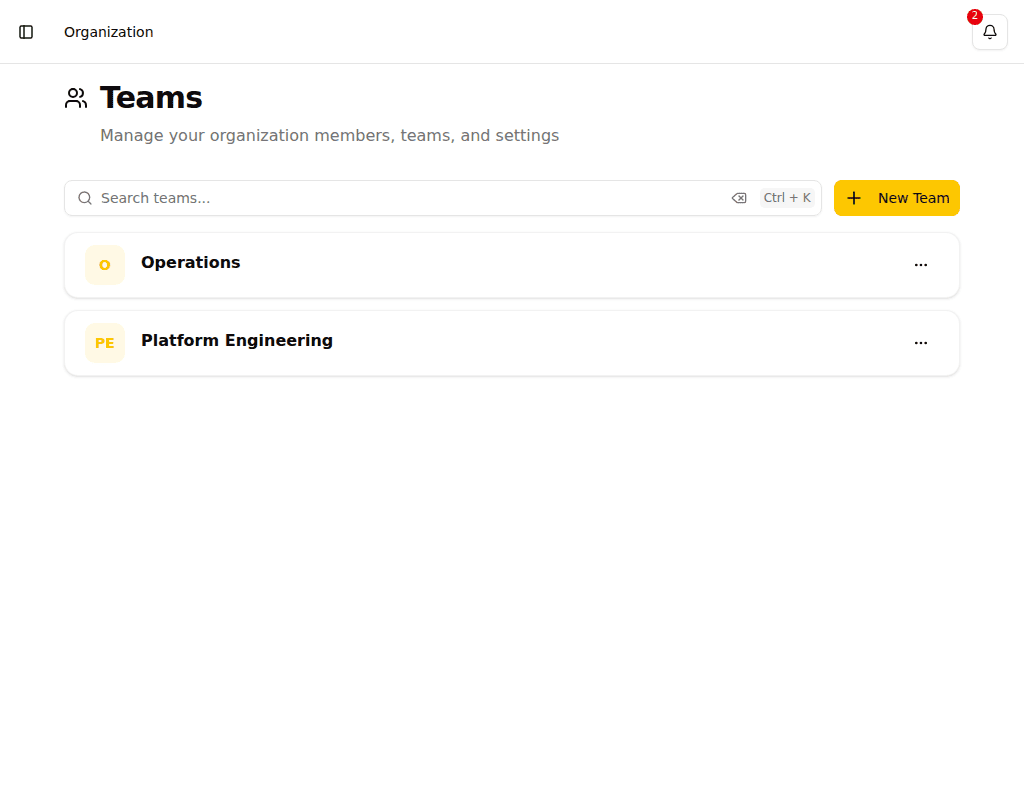
Creating a Team
- Navigate to Teams in the sidebar
- Click New Team (requires Admin role)
- Enter a team name and description
Managing Team Members
On the team detail page, you can see all current members with their roles.
Inviting Members
- Open the team detail page
- Click Copy Invite Link
- Share the link with the person you want to invite
The invited user will see an invitation page where they can accept the invite by logging in or creating a new account.
Teams in Escalation Policies
Teams can be added as recipients in escalation policy steps. When an escalation step targets a team, all members of that team who are within their operating hours will be notified.
See Escalation Policies for details on configuring team-based notifications.