

English
On-Call Schedules
On-call schedules define who is available to respond to incidents and when. Schedules are managed at the organization level under Organization > On-Call in the sidebar.
Calendar Tab
The Calendar tab provides a visual overview of all on-call schedules across your organization.
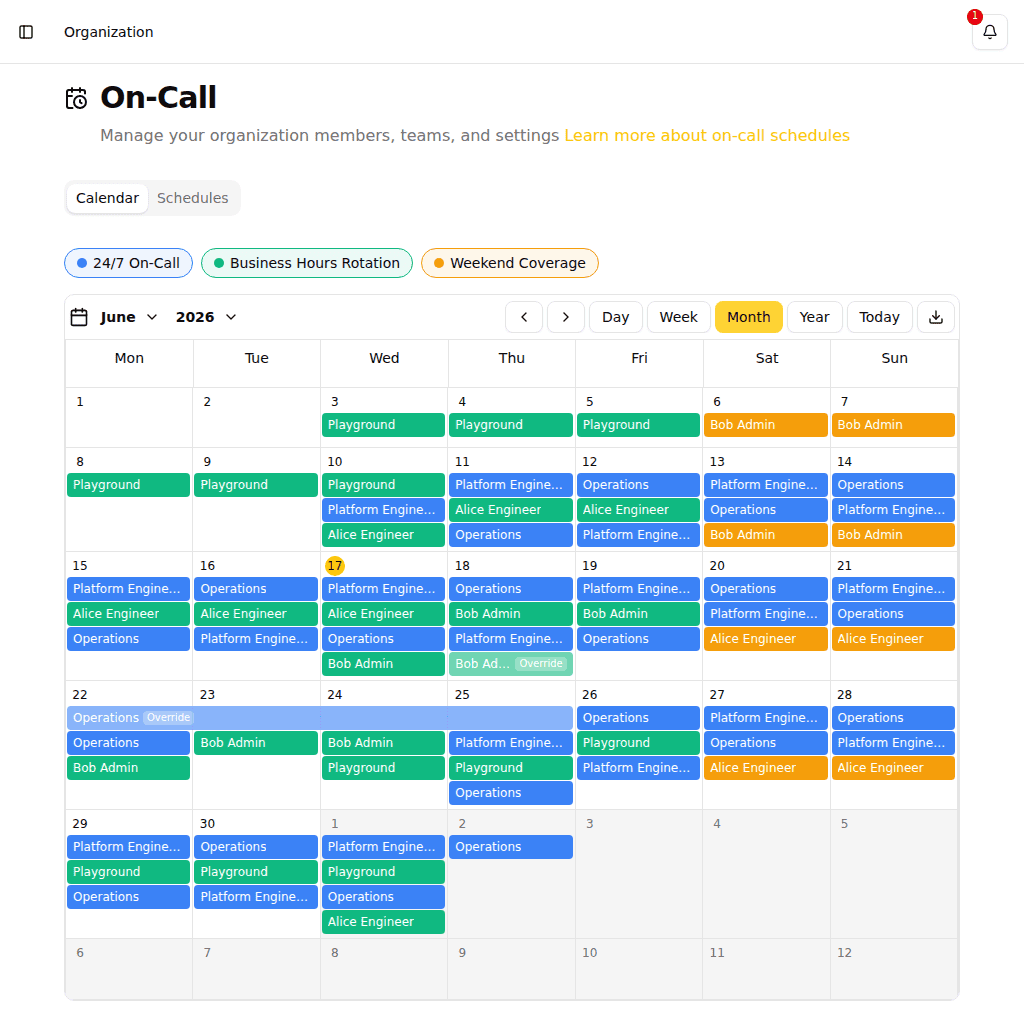
Use the view switcher to display the calendar in day, week, month, or year view. The selected view is reflected in the URL (e.g. ?view=month), so you can share or bookmark a link that opens the calendar in a specific view. On mobile, a labeled View dropdown is shown above the calendar for easier switching; the mobile and desktop view preferences are stored independently, so switching to day view on your phone does not change your desktop preference.
Schedules Tab
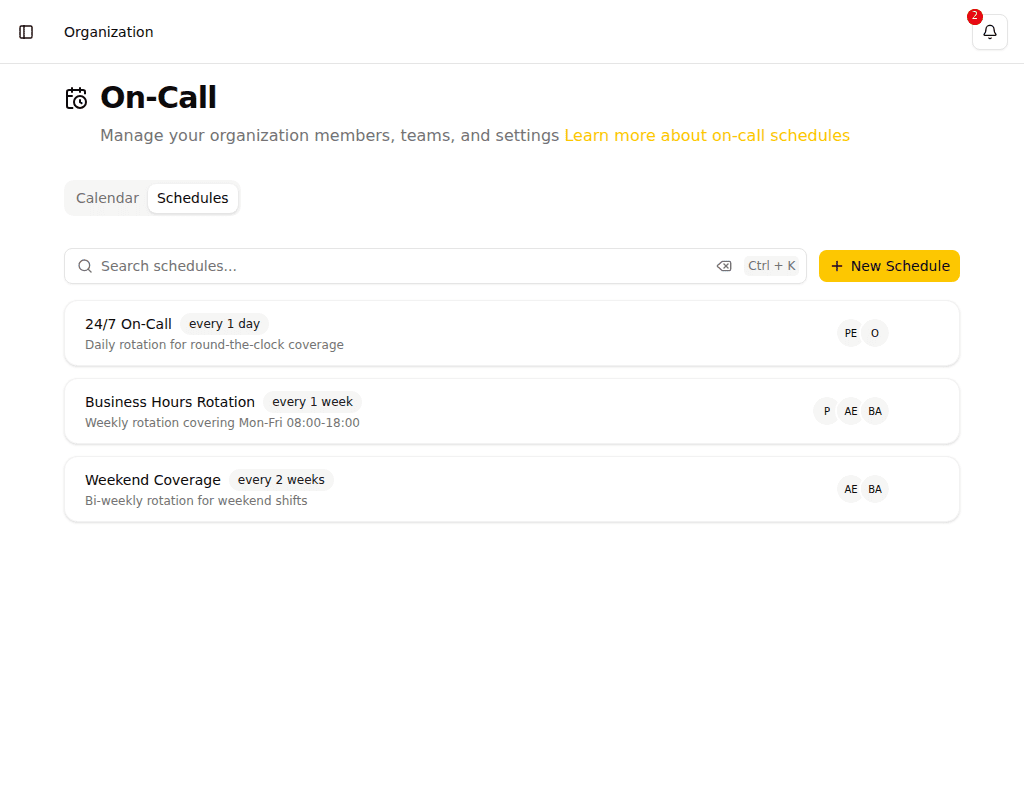
The Schedules tab lists all on-call schedules. Each schedule shows its name, rotation interval, and assigned responders.
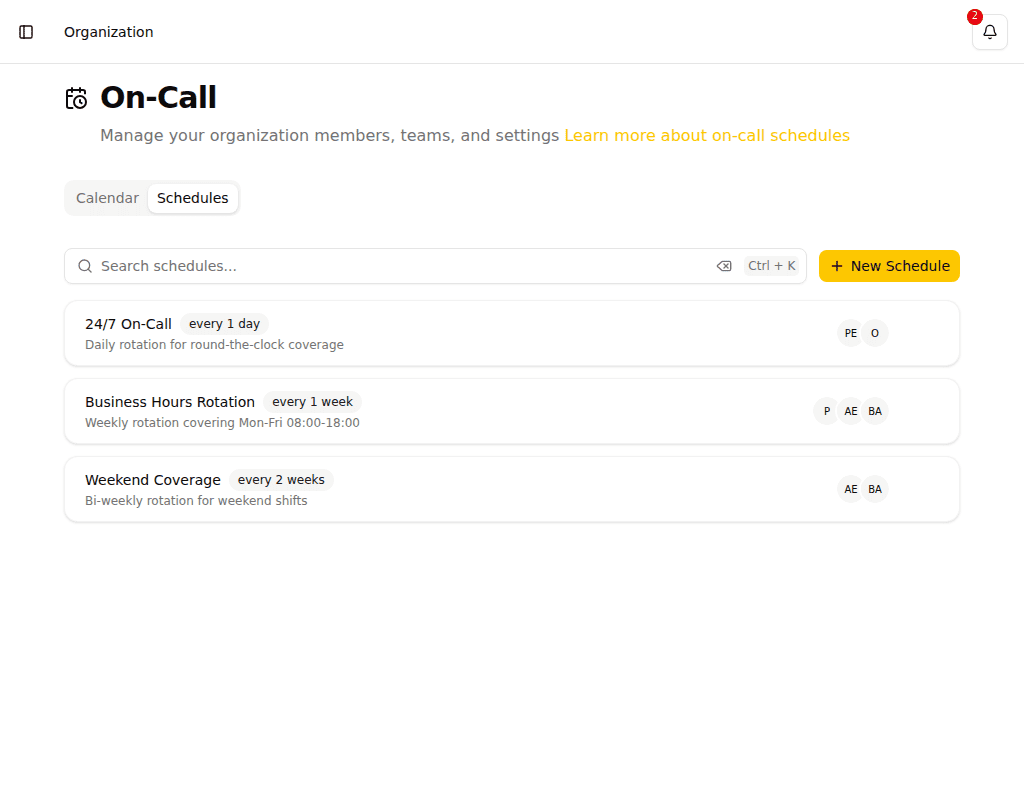
- Search -- Filter schedules by name
- New Schedule -- Create a new on-call schedule (Admin only)
Creating a Schedule
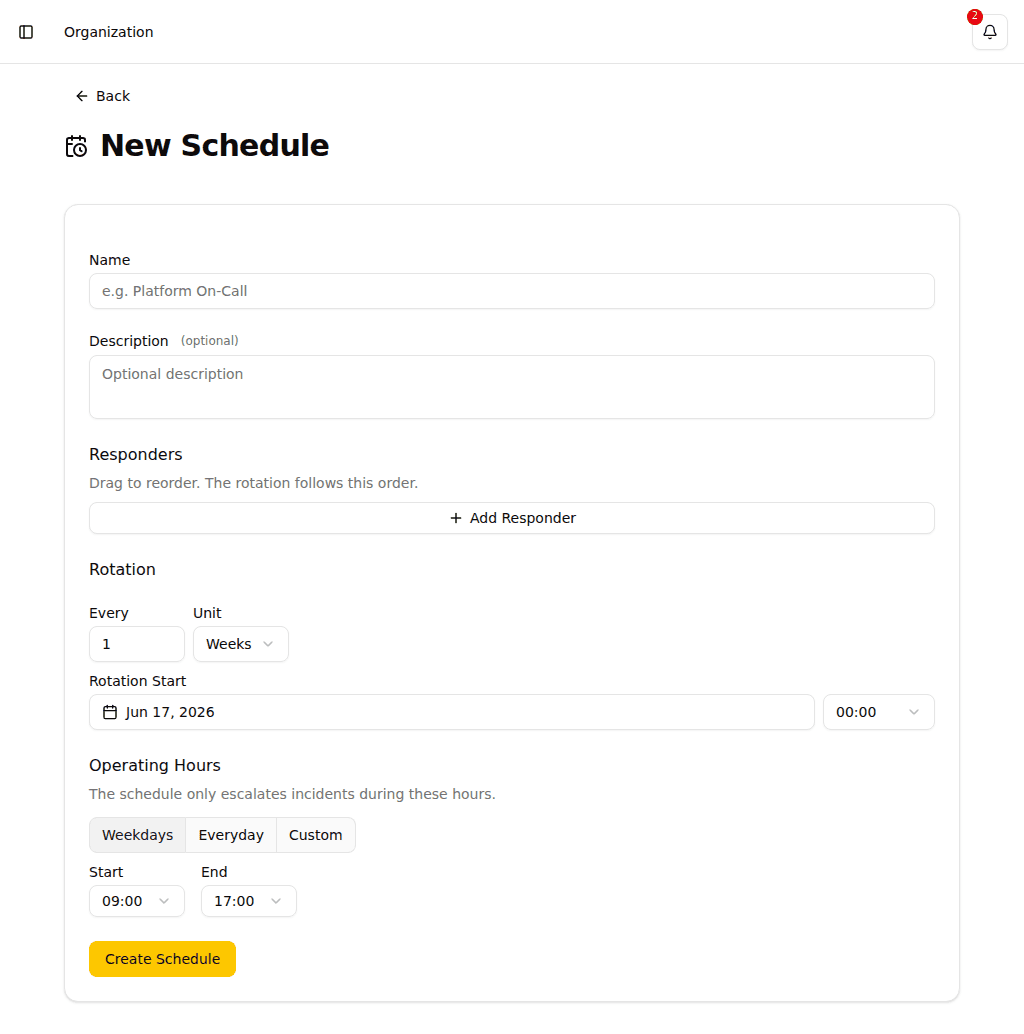
Click New Schedule to open the schedule form. Configure the following:
| Field | Description |
|---|---|
| Name | A descriptive name for the schedule (e.g., "Platform On-Call") |
| Description | Optional description |
| Responders | Users or teams who participate in the rotation. Drag to reorder. |
| Rotation | How often the on-call responsibility rotates (minutes, hours, days, or weeks) |
| Rotation Start | When the first rotation begins |
| Operating Hours | Time window during which the schedule is active. Outside these hours, "nobody on call" alerts are suppressed. |
TIP
The rotation follows the order of the responders list. Drag responders to change the rotation order.
TIP
Setting Operating Hours to 00:00–00:00 (start equals end) is treated as all day — the schedule is active for the full 24 hours.
INFO
When your on-call shift starts, Pulse notifies you by push notification and email: "You are now on call for [schedule name]." When your shift ends, you receive a second notification and email: "Your on-call shift for [schedule name] has ended." Notifications are sent in your preferred language. If you are on call for consecutive shifts, you will receive a start notification at the beginning of each shift. The email includes a direct link to the on-call calendar for that schedule.
INFO
If no one is on call during configured operating hours, Pulse raises a system incident named "No one on call for [schedule name]" to alert your team. The schedule name is included so you can immediately identify which schedule has a coverage gap. Outside operating hours, this alert is suppressed — gaps in coverage are expected and not reported.
Managing Schedules
Click a schedule to view its detail page with two tabs:
- Configuration -- Edit the schedule name, responders, rotation, and operating hours
When an edit takes effect
At the foot of the configuration form, In effect from decides when your changes take over:
| Choice | What happens |
|---|---|
| Now (default) | The new roster, rotation and operating hours apply from the moment you save. |
| Scheduled | The change waits until the date and time you pick, then takes over automatically. |
Either way, the past never changes. Paging the calendar back always shows who was genuinely on call at the time, worked out from the settings that were in force then — not from the settings the schedule has today. Reordering the rotation, changing the interval or narrowing the operating hours affects the future only.
A schedule can have one scheduled change waiting at a time. If one is already waiting, the form opens on it and says so, so a second edit refines that change rather than adding another behind it. Cancel change discards it and leaves the rotation currently in force untouched. A scheduled change shows up in the calendar from the moment it will take over, so you can see its effect before it happens.
INFO
Renaming a schedule or editing its description always takes effect immediately, whichever option you choose. Neither changes who is on call.
- Overrides -- Create temporary overrides to assign a different responder for a specific time period. Overrides are not restricted to the schedule's operating hours — they apply for the full time window you specify.
Override status badges:
- Active -- Currently in effect
- Upcoming -- Scheduled for the future
- Past -- Already expired
Override actions
The actions available for an override depend on where it sits in time:
| Status | Available actions |
|---|---|
| Upcoming | Edit (Admin only), Delete |
| Active | Replace from now, End now |
| Past | None — past on-call can't be changed |
Replace from now — Reassigns on-call responsibility from the current moment to the end of the active override. A dialog prompts you to select the new responder. The portion of the override that has already elapsed is preserved and unaffected.
End now — Ends the active override immediately. On-call returns to the normal rotation from this point. The elapsed portion is preserved.
INFO
Overrides that have already started or ended cannot be deleted. To stop an active override early, use End now or Replace from now.
INFO
The Replace from now and End now actions are also available from the calendar event popover. Click any override event on the calendar to access them.
Related
- Escalation Policies -- Configure incident escalation
- Teams -- Manage team membership